Sign in and open the Dashboard
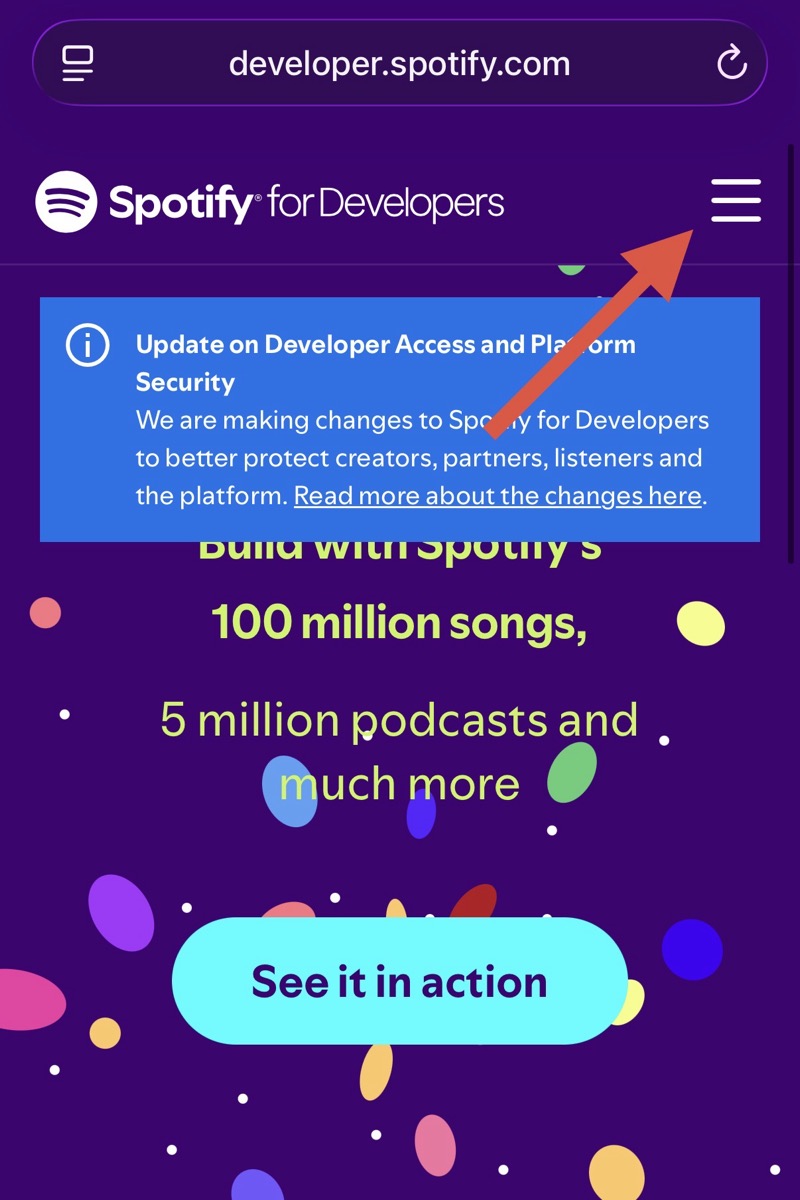
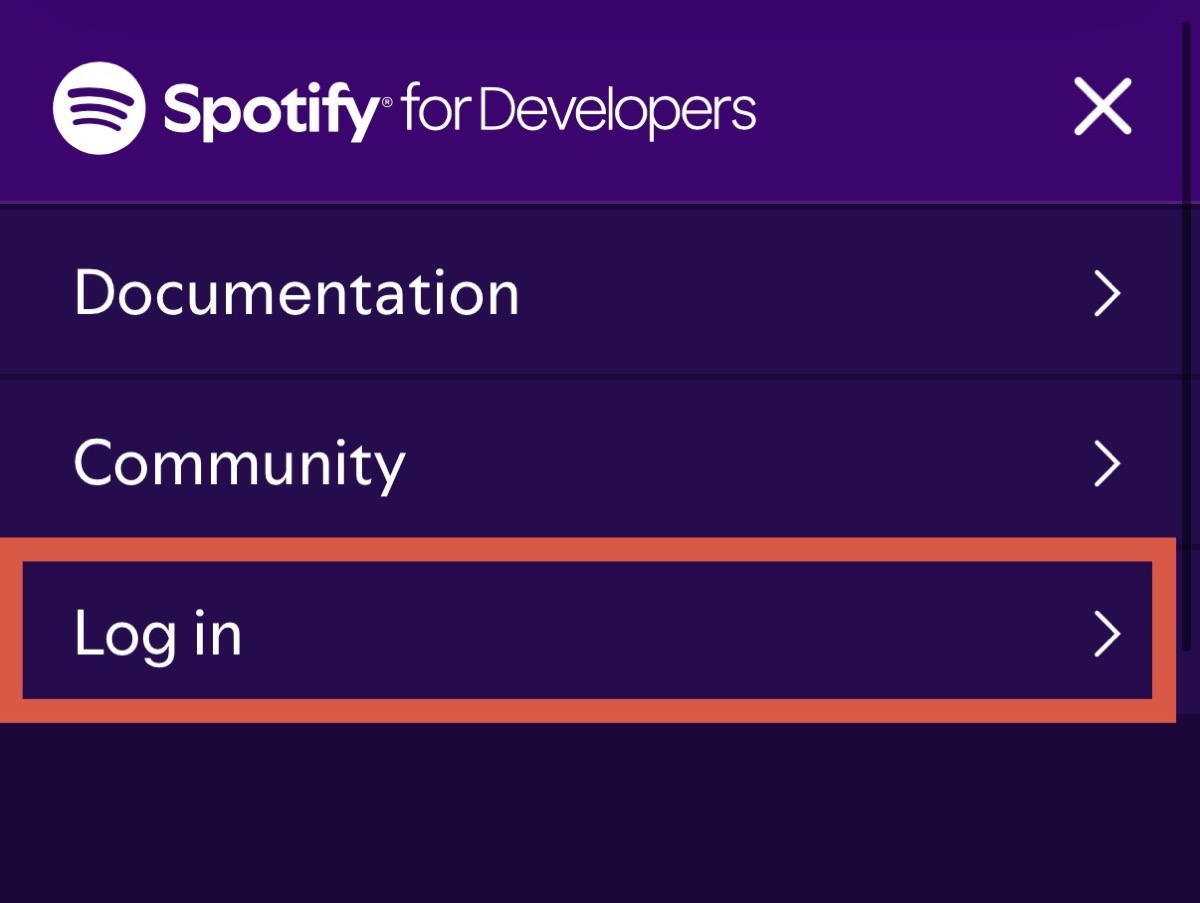
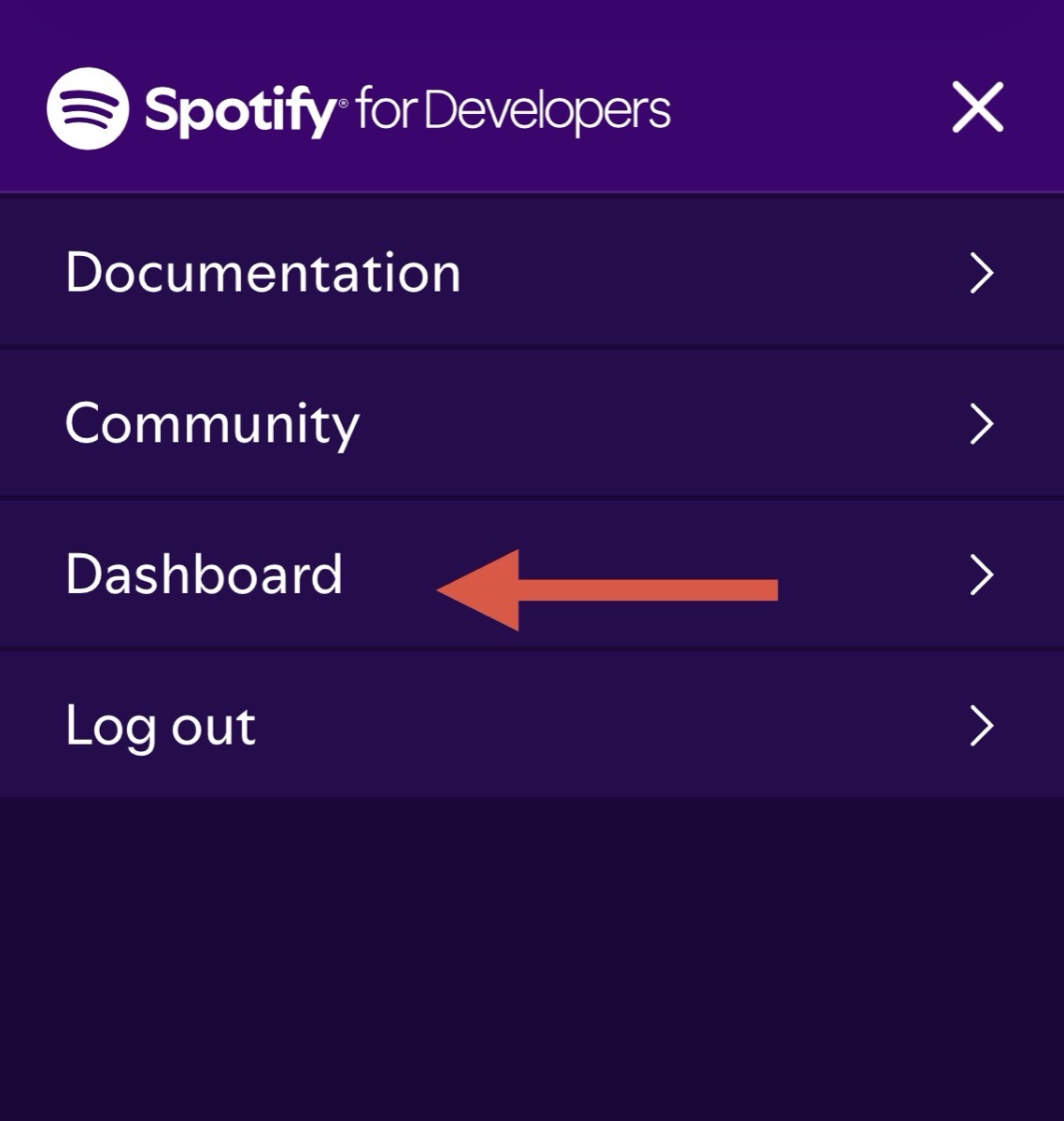
Go to Spotify for Developers. If the menu shows Log in, sign in to Spotify first. Open the top-right menu again and select Dashboard.
Accept the terms if prompted
The first time you use Spotify for Developers, you may be asked to accept the developer terms. Check the agreement box and select Accept the terms.
This screen does not appear every time. If you have already accepted the terms and can see the Dashboard, continue to the next step.
Create a Spotify app
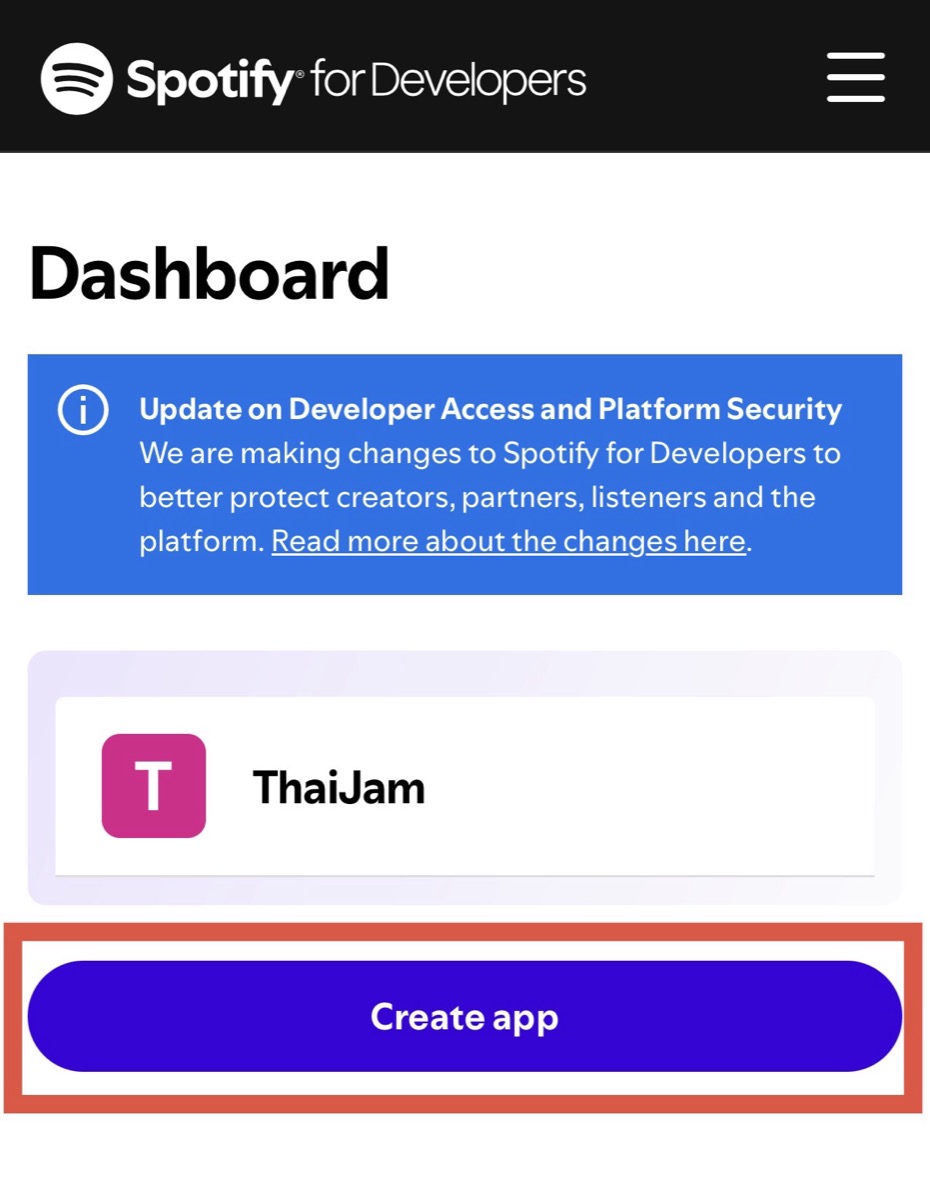
Select Create app on the Dashboard. You may enter any App name and App description. Website can be left blank.
Add the Redirect URI
Enter the address below exactly in Redirect URIs. Capitalization, symbols, and the path must match. Then select Add.
thaijam://spotify-login-callback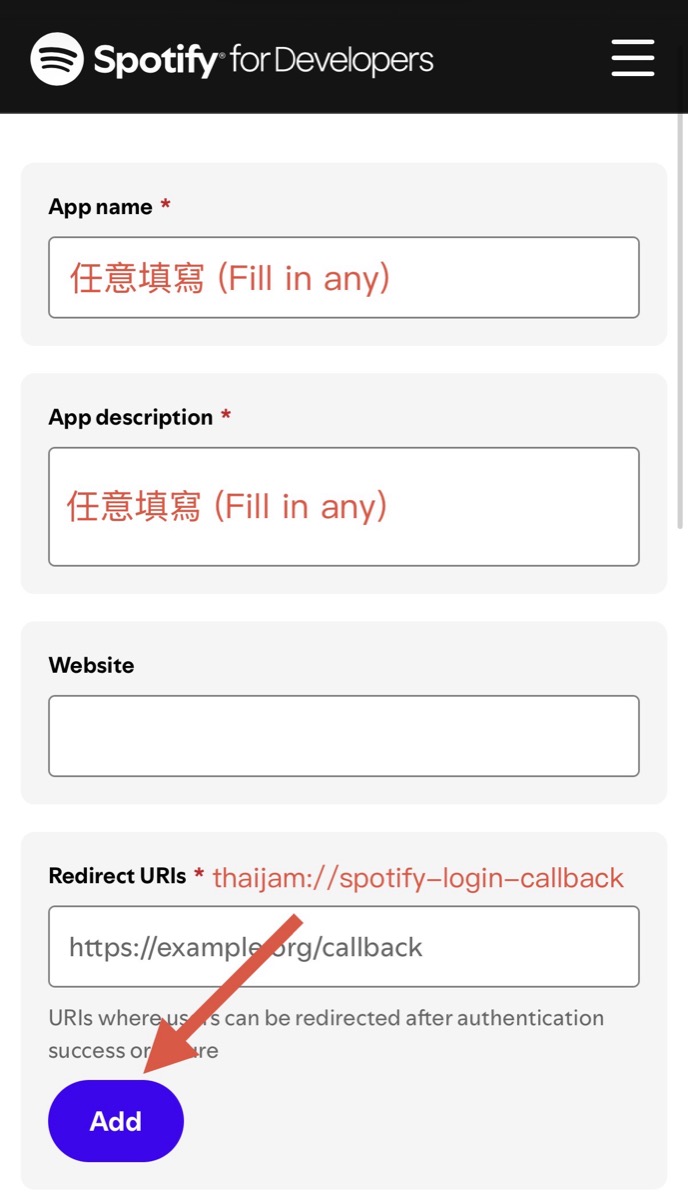
Select the APIs and SDKs
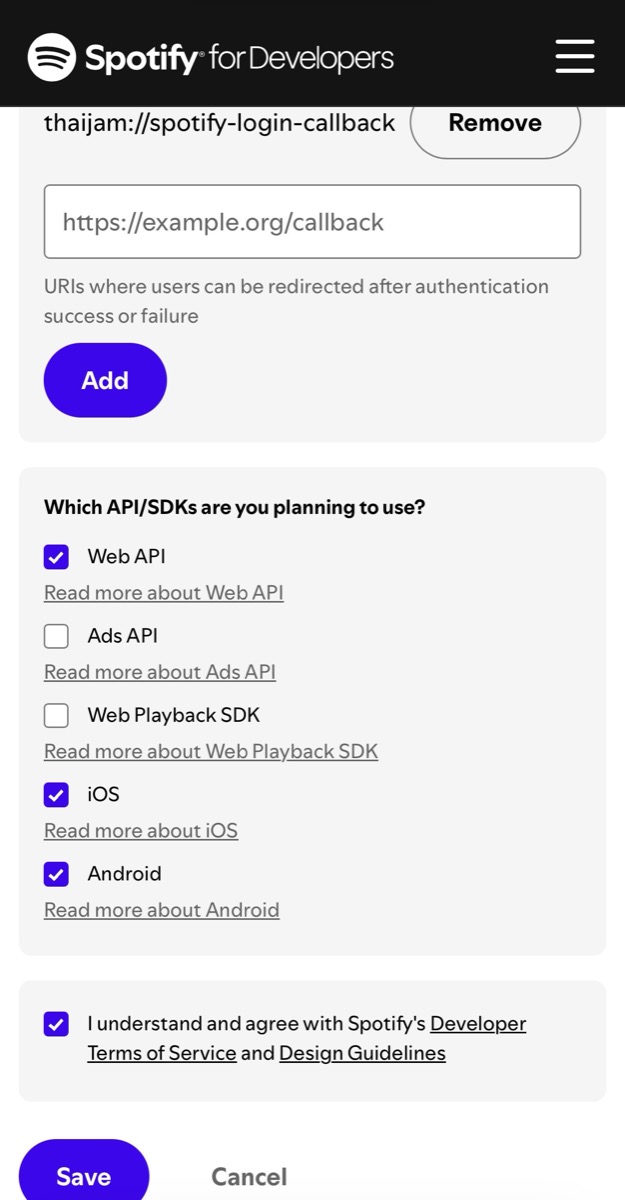
Under Which API/SDKs are you planning to use?, select the three options below. Accept Spotify's developer terms, then select Save at the bottom.
- Web API
- iOS
- Android
Android also requires app identification. After creating the app, add the following Android Package and SHA-1 in the Spotify app settings:
com.thaijam.androidF2:83:16:0F:12:43:C0:ED:E2:9C:A6:21:64:75:60:3B:99:C6:DB:C3Copy the Client ID
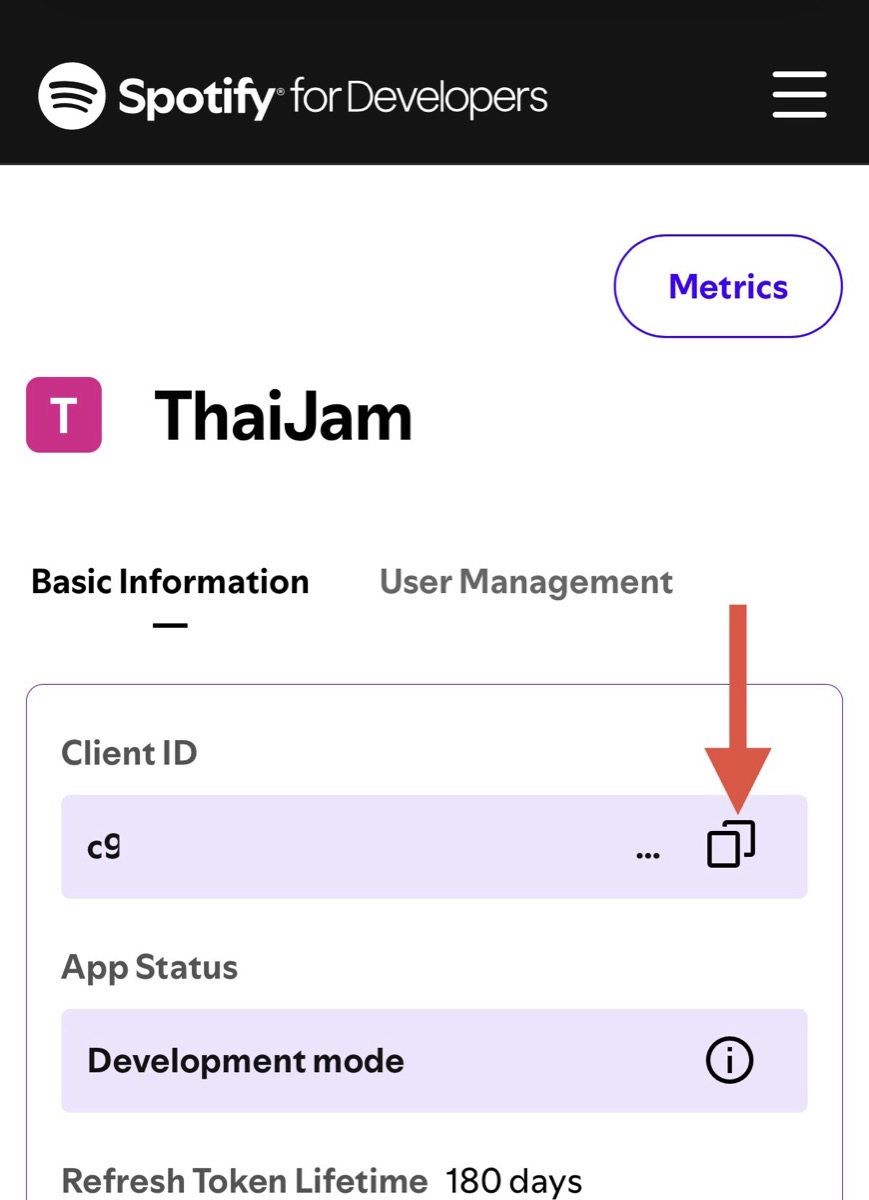
Return to the app's Basic Information and select the copy icon beside Client ID.
Make sure you copy the Client ID, not the Client Secret. ThaiJam does not need your Client Secret. Never share it with anyone.
Finish connecting in ThaiJam
Open ThaiJam and follow these steps:
- Go to Settings → Spotify
- Paste the Client ID you copied
- Select Save
- Select Connect Spotify and complete the authorization
You can now search for and connect Spotify tracks in ThaiJam. Spotify plays the audio while ThaiJam displays lyrics and follows the playback position.